Secure Share
Secure Share lets you share Ideas and Portfolios by email invitation, so colleagues and clients can review your work. You enter a recipient's email and InvestLens sends them a secure link; they can preview what you sent without an account, and sign in to keep a copy.
Everything you have shared is managed on the Secure Share page: https://app.investlens.ca/invitations
1. How Secure Share works
- Open the Share dialog from a portfolio or Idea.
- Enter the recipient's email, your display name (shown to the recipient), a share expiry (3 days, 7 days by default, or 2 weeks), and confirm your password.
- InvestLens emails a secure link to that recipient — you do not copy or distribute the link yourself.
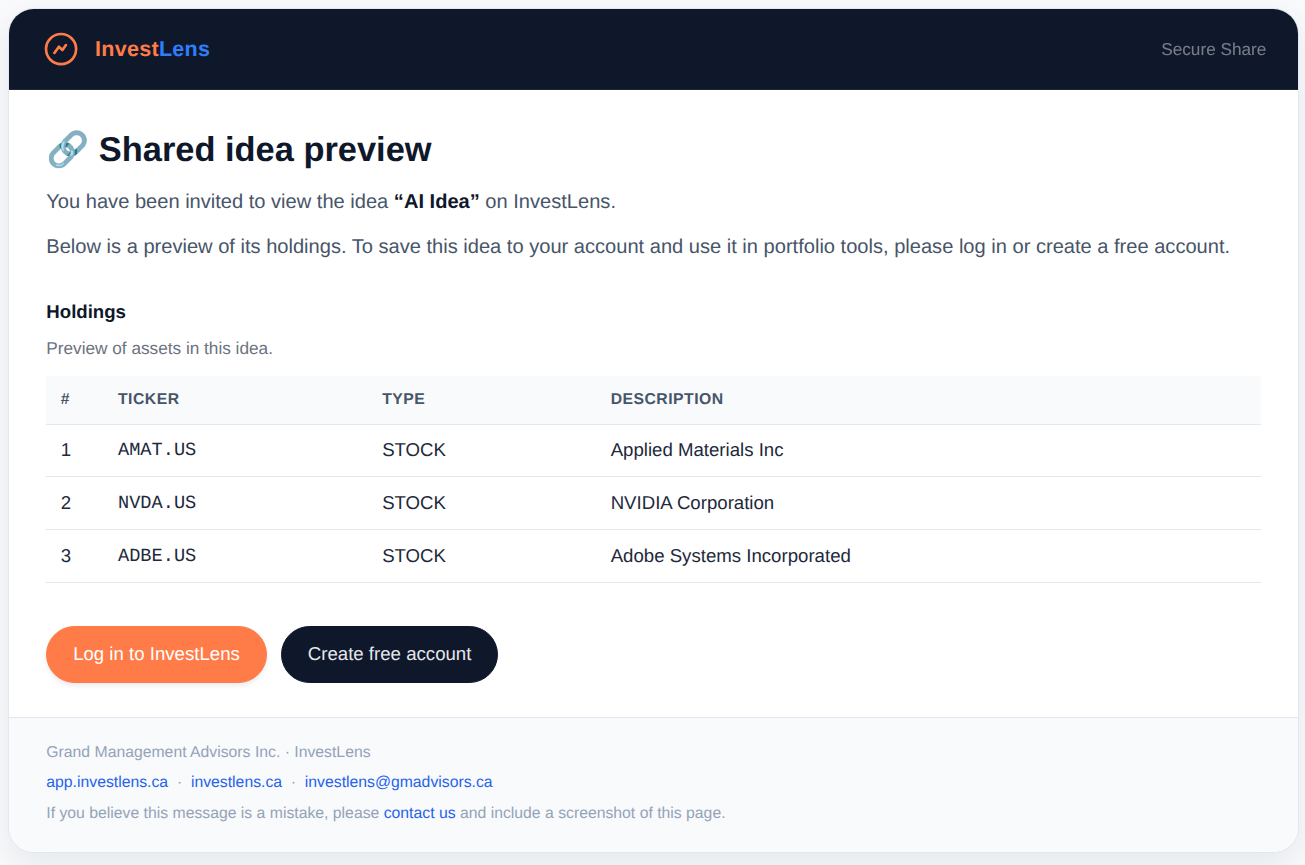
- The recipient opens the link and sees a preview of the holdings.
- To keep it, the recipient logs in or creates a free account, then confirms to add the shared Idea or portfolio to their own account.
- You can monitor invitation status and revoke access before the share is accepted.
1.1 Managing what you have shared
From the Secure Share page you can:
- View everything you have shared, and search it by recipient email.
- See share status and expiry.
- Revoke a share that has not yet been accepted, which prevents the recipient from accepting it.
- Delete an old share from your list. Deleting only tidies your own list; it does not undo a share that was already accepted.
2. Common use cases
- Client review: Share a portfolio report before a meeting.
- Second opinion: Send an ideas shortlist to a colleague for feedback.
- Team collaboration: Share a model-driven theme with an internal group.
- Education: Share a portfolio example with students or peers without requiring onboarding.
3. Share Ideas
Ideas are shared by email invitation to a recipient you specify. A recipient without an InvestLens account can still preview what you sent.
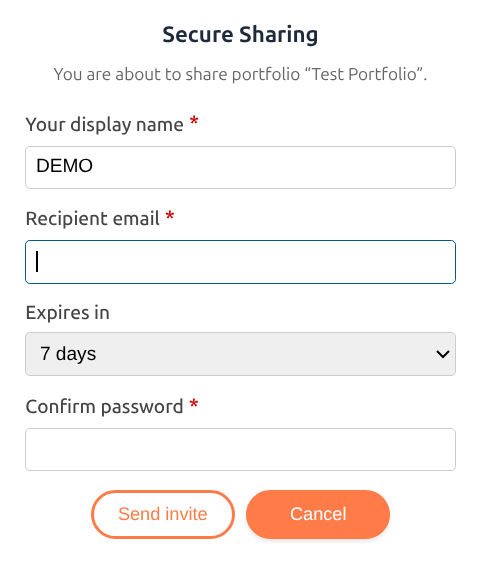
Shared Ideas are intended for collaboration and review (for example: sending a shortlist to a colleague or client for feedback).
4. Share Portfolios
Portfolios can be shared using the same workflow as Ideas: enter a recipient's email, and InvestLens sends them a secure link so you can track access.
4.1 What the recipient sees
Recipients can open a shared link in a browser and preview the holdings without creating an InvestLens account. Adding the shared portfolio or Idea to their own account requires signing in — logging in or creating a free account, then confirming.
5. Invitation status and tracking
InvestLens shows the status of your shared links and invitations so you can confirm whether a recipient has accessed the shared view.
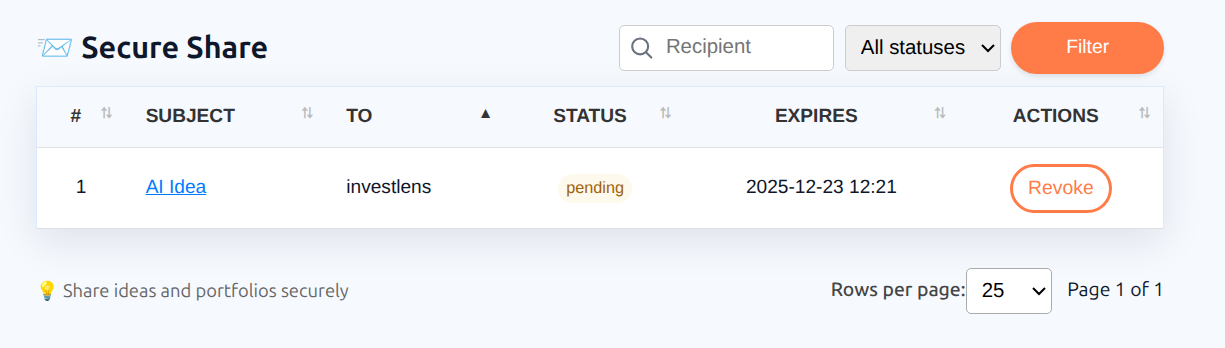
Each row represents a share you initiated.
- Subject: the shared item (click to open)
- To: the recipient
- Status:
- pending: invitation sent but not accepted
- accepted: recipient has accepted the share
- revoked: invitation has been revoked
- expired: the invitation passed its expiry date before being accepted
- Expires: expiry date/time for the invitation or link (if applicable)
- Actions: manage the share
A typical workflow is to send an invitation, confirm delivery, and verify access prior to a meeting.
6. Revocation rules
You can revoke a share before a recipient accepts it or adds the shared content to their account.
When you revoke a share link or invitation:
- The link is no longer valid for viewing.
- Any unaccepted invitation associated with that link is cancelled.
- You can send a new invitation if you want to share again later.
7. Security and best practices
- Share links only with intended recipients.
- Verify emails from InvestLens before clicking links:
- Confirm the sender address/domain and that the message follows the branded template.
- If anything looks off, do not click links and contact support at investlens@gmadvisors.ca.