Getting Started
InvestLens is a practical investment analytics platform for quickly generating ideas, building portfolios, and analyzing results.
1. Log in
- Open the InvestLens app: https://app.investlens.ca/
- Sign in with your username and password.
- You will be welcomed with our Universe Screener module that allows you to screen the universe of Canadian and American stocks and ETFs.
2. Generate your first ideas
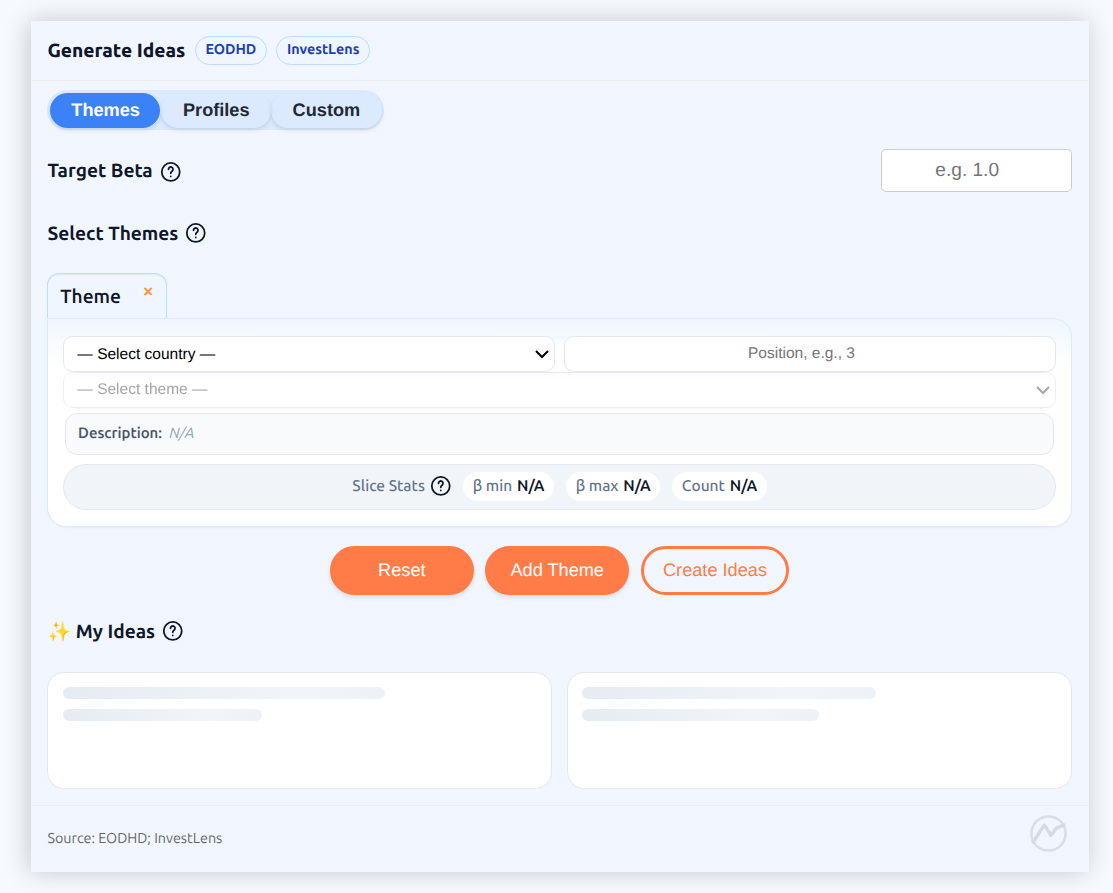
- Generate Ideas by Profile, Theme, or Custom slicing.
- Set your preferences (for example: asset type, country, and position count).
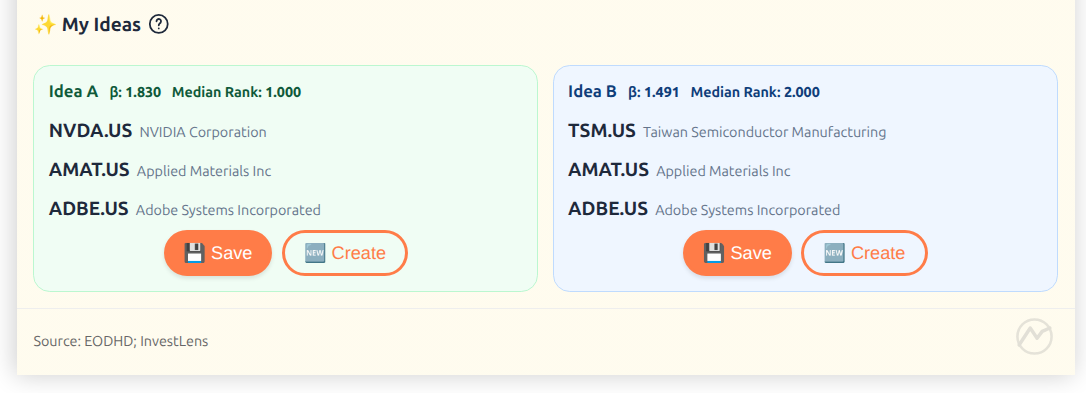
- Click Create Ideas to create a ranked list of candidates
- Click Save to keep the ideas for later under My Ideas tab.
3. Create your first portfolio
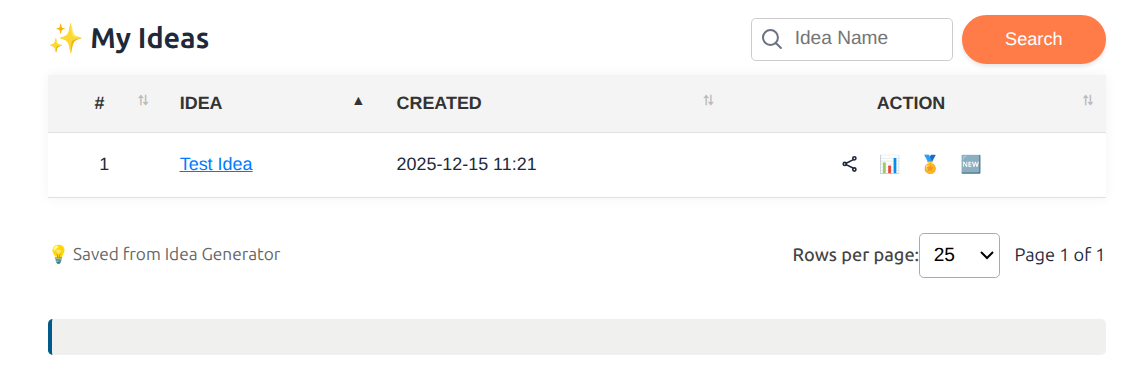
- Select an idea in My Ideas, then click New Portfolio.
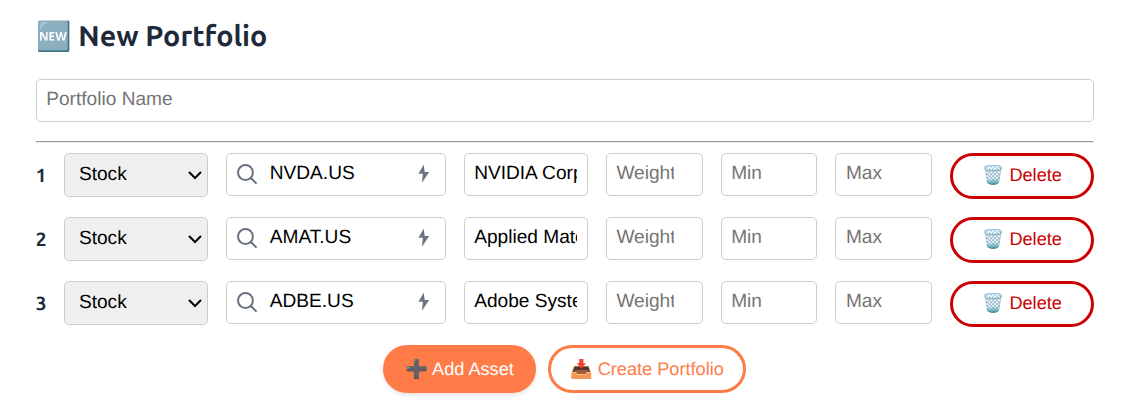
- Name it (e.g., Test Portfolio).
- For each asset, select min and max weights that you would like to allocate to it. If not sure, leave them blank.
- Press Create Portfolio button.
4. Run an analysis
Under My Portfolios tab, select a portfolio of interest;
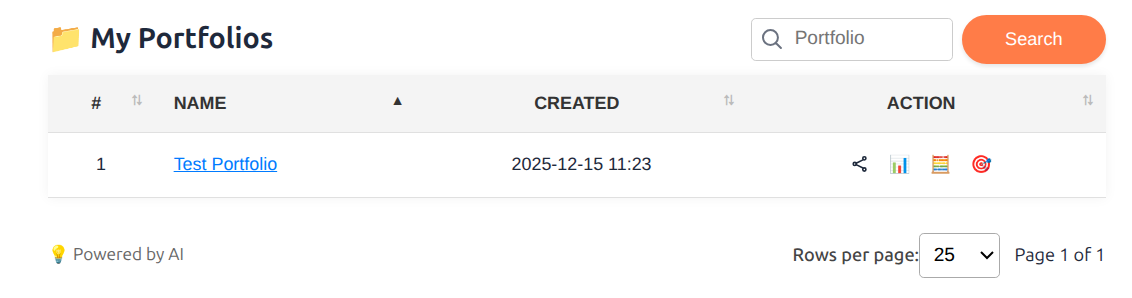
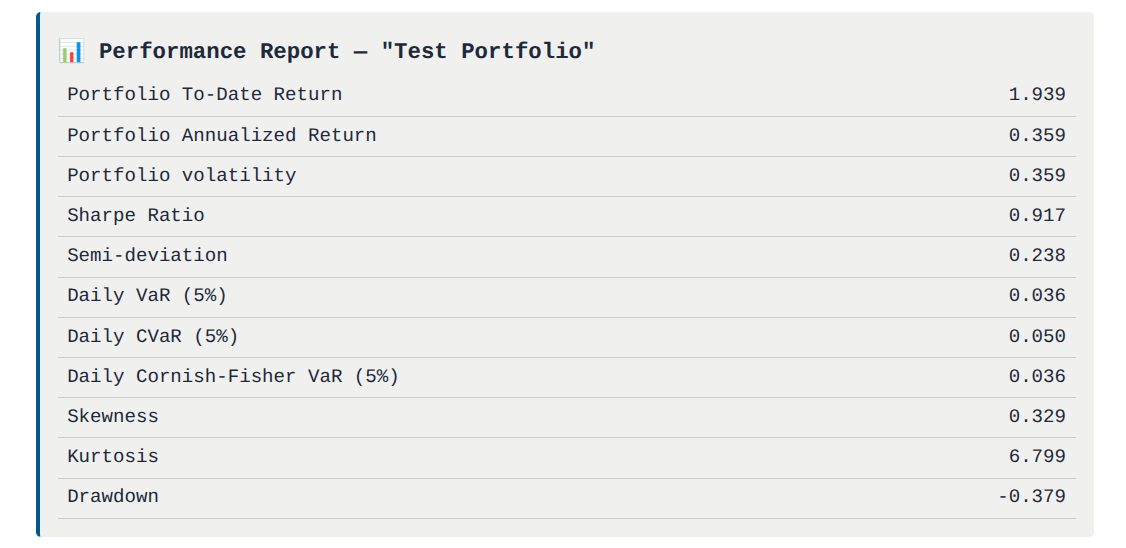
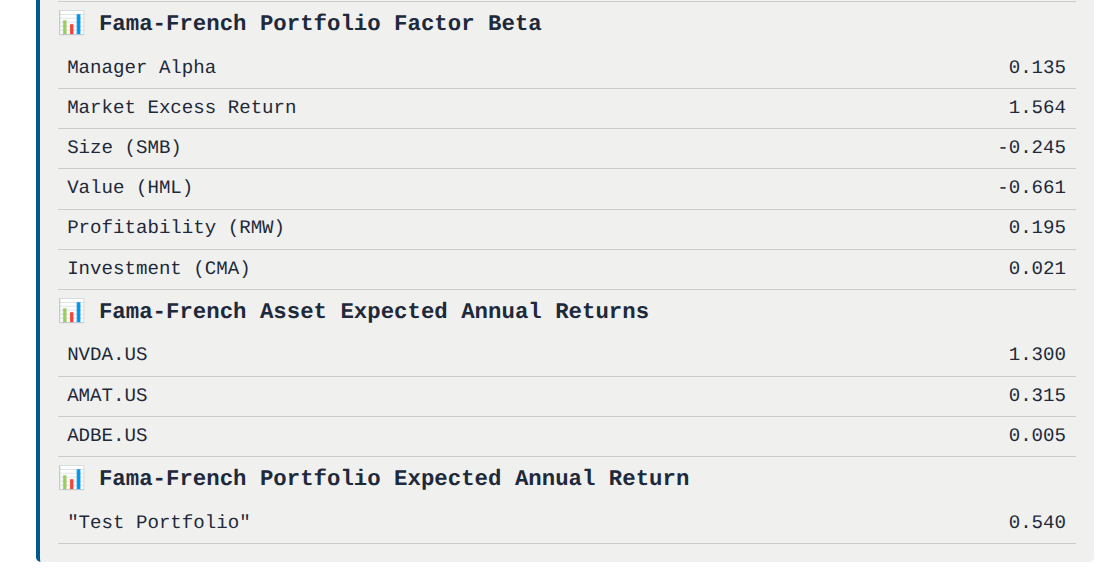
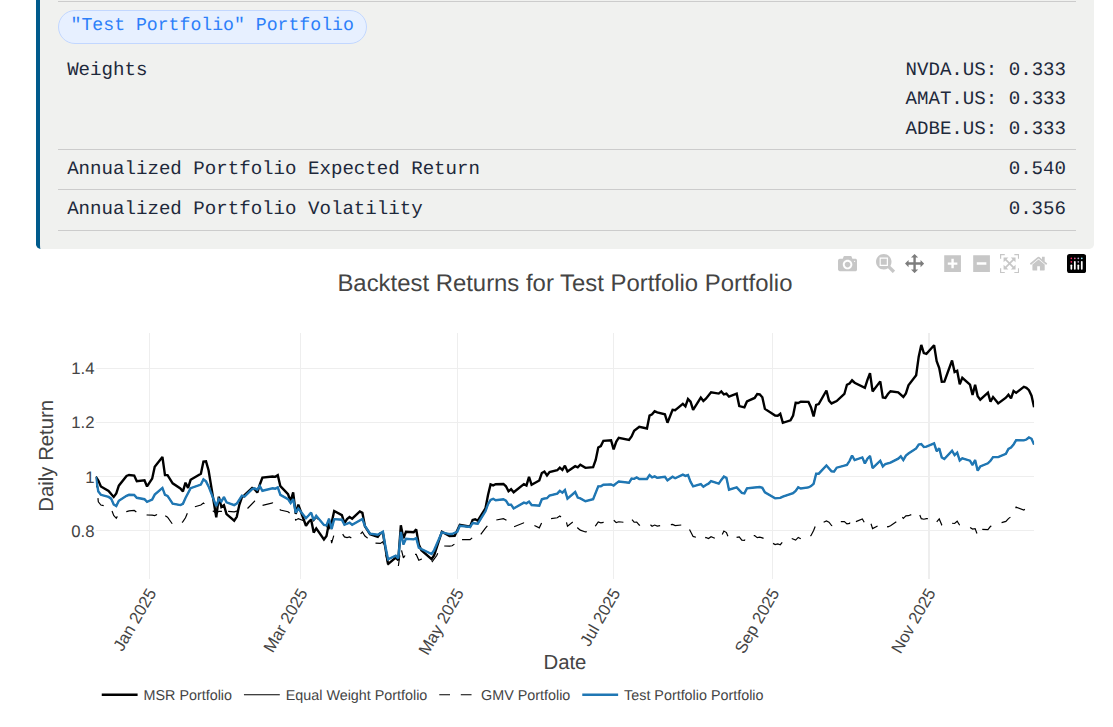
experiment with the following choices:
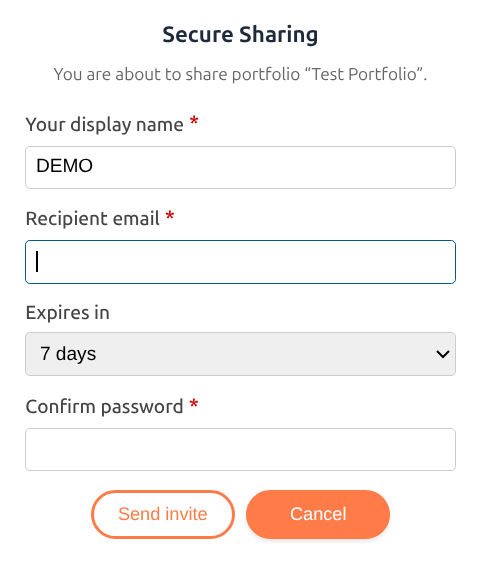
5. Share
- Open your portfolio.
- Click Share.
- Set your display name, the recipient's email, and the share expiration date.
- Press Send invite button.
Congratulations! You have generated your first idea, converted it into a portfolio, explored its optimal asset allocation, and reviewed performance using both statistical analysis and backtesting.
6. Two more things worth knowing
6.1 Iris is on every page
The floating chat button in the corner opens Iris, the in-app assistant. You can ask where a feature lives, what a metric means, or have it run performance, factor, allocation, and backtest analytics right in the conversation. It can also propose changes to your portfolios and ideas, which apply only after you confirm them. For long sessions, open the full-page Iris Terminal from the sidebar.
6.2 Two interface layouts
InvestLens ships two interchangeable skins — Workspace (the denser, terminal-style default) and Legacy (the original dashboard). Both expose the same features and data; switch with the Interface toggle in the sidebar. See Interface Modes.
6.3 Set your timezone
Dates and times across the app follow the timezone on My Profile. New accounts default to Toronto, so set it once if you work in another zone.
6.4 Just created a portfolio?
Market data is fetched in the background, so analytics on a brand-new portfolio may report that data is still downloading. Give it a few minutes and try again — see Data quality and exclusions.